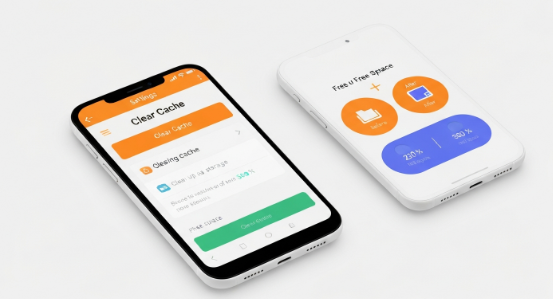
Clearing cache on Android is one of the fastest ways to refresh your phone, free storage, fix lag, and boost app performance. Many users face slow loading, app crashes, and low memory issues because cached files pile up over time. When you clear cache on Android correctly, you restore speed and responsiveness without deleting personal data.
This guide offers a complete step-by-step explanation of how cache works, why you should clear it, and several safe methods to clear cache on Android. The tone stays simple, the instructions are actionable, and each section gives the exact answers users search for.
What Does It Mean to Clear Cache on Android
Cached data involves temporary files stored by apps and your system. These files help apps load faster, but they also grow large when unmanaged. When you clear cache on Android, you remove those temporary files without affecting photos, messages, or saved accounts. Your device functions normally, only faster and lighter.
Why You Should Clear Cache on Android Regularly
Many users notice a phone slowing down after weeks of usage. Apps like YouTube, Chrome, TikTok, and Instagram store large amounts of cache. Over time, this reduces storage space. When you clear cache on Android, your system gets more breathing room, improving speed and reducing lag during multitasking and gaming.
How to Clear Cache on Android from Settings
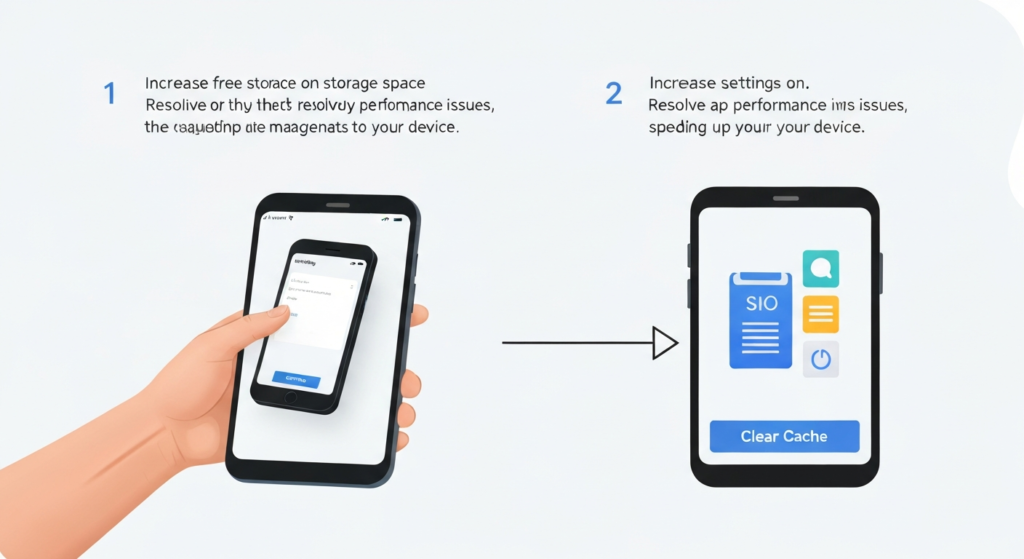
One of the easiest methods involves the built-in system settings. You don’t need external apps. You simply locate storage options, select your target application, and remove cached files.
Steps to Clear Cache on Android Manually
- Open Settings
- Tap Apps & Notifications or App Manager
- Choose the specific app
- Tap Storage
- Select Clear Cache
This action immediately removes temporary files. Your app loads fresh, often with reduced glitches or delays.
How to Clear Cache on Android for All Apps at Once
Sometimes clearing individual apps feels slow. You can clear cache system-wide using device storage management. This works well when storage is low or multiple apps lag.
System-Level Cache Clearing
• Open Settings
• Choose Storage
• Tap Cached Data
• Confirm the cleanup
Your device clears cache across applications. Storage frees up instantly and app performance becomes smoother.
Clear Cache on Android Using Built-In Device Care Tools
Many devices include optimization features. You can clear cache on Android with a single tap using performance enhancement tools. The Device Care, Storage Cleaner, or Memory Booster section handles quick cleaning safely.
Optimizing with Device Care
This function scans cached data, temporary junk, and hidden files. It removes them safely without touching personal content. Users feel instant responsiveness in apps and browsing.
Clear Cache on Android Browser for Faster Internet Speed

Browsers store huge caches like images, scripts, and cookies. This helps websites load faster initially. However, when too much cache builds, pages load incorrectly, videos buffer, and browsing slows. Clearing browser cache restores fast browsing.
Steps to Clear Cache in Mobile Browser
• Open browser (Chrome, Opera, Firefox)
• Go to History or Privacy settings
• Select Clear browsing data
• Check Cached images and files
• Tap Clear Data
Your browsing speed increases, and loading errors often disappear.
Benefits of Clearing Cache on Android Frequently
• Improves app launch time
• Frees valuable storage space
• Fixes app freeze and crash errors
• Boosts gaming smoothness
• Helps reduce battery drain
• Lowers background resource usage
Clearing cache on Android supports long-term device health. You maintain speed, avoid overheating, and store more personal files.
How Often Should You Clear Cache on Android?
For best performance, clear cache on Android every few weeks. Frequent cleaning prevents heavy buildup. However, avoid clearing daily because apps rebuild cache automatically. A balanced schedule keeps your phone efficient without interruption.
Advanced Methods to Clear Cache on Android

1. Use Safe Storage Management Tools
Many phones include built-in memory optimization. These tools automate cache removal and detect heavy apps.
2. Restart Device After Cleaning Cache
Restarting refreshes RAM, closes background processes, and finalizes cleanup. This simple habit maximizes speed benefits.
3. Clear Cache for Specific Heavy Apps
Focus on apps like social media, games, streaming platforms, or browsers. These apps generate the most cached files. Targeting them enhances speed more effectively.
Conclusion
You now understand how to clear cache on Android safely and effectively. By using built-in device settings, storage tools, and browser cleanup options, your phone becomes faster, smoother, and more responsive. Clear cache frequently, restart your device occasionally, and enjoy stable performance always.
FAQs
1. Does clearing cache delete my photos or files?
No. Cached data only includes temporary files. Personal items remain safe.
2. Will apps run faster after clearing cache?
Yes. Fresh cache reduces loading delays and lag.
3. Should I clear cache on Android daily?
No. Cleaning weekly or twice a month works better.
4. Why do apps store cache repeatedly?
Apps rebuild cache to speed up performance. Temporary storage improves loading.
5. What apps create the most cached data?
Social media, browsers, and video streaming apps usually generate the most cached files.